View IPTV Plans Chat on WhatsApp (opens WhatsApp in a new tab)

Prefer to call? +44 7868 240819

Installation guide

The steps are the same on every device: install a player, enter your details, let the list load. Here is what that looks like in practice — and what to do when it does not work first time.

Before you start

Five minutes of preparation saves most of the problems people message us about.

  • Have your subscription details to handWe send these after your order is confirmed. Keep the message open on your phone — you will be typing from it.
  • Get the device online firstConfirm it can reach the internet before you install anything. If a browser or another app works, you are ready.
  • Allow about fifteen minutesMost of it is the channel list loading for the first time, which is slower than every load afterwards.
  • Typing is easier on a phoneIf your player offers a code-based sign-in, use it. Entering a long URL with a TV remote is slow and error-prone.

The general method

Four steps, on any device

  1. Install a compatible IPTV player Open your device’s app store and install a player that accepts a playlist. If you are not sure which to choose, message us and we will suggest one that works well on your device.
  2. Open it and add your subscription Players call this different things — “add playlist”, “add user”, “new profile”. It is the screen that asks for the details we sent you.
  3. Enter the details exactly as sent Character for character, with no trailing space. A single wrong character is the most common reason a list refuses to load, and it looks identical to a broken subscription.
  4. Wait for the first load, then restart the app The first load pulls the whole channel list and the program guide, which takes longer than any load afterwards. Closing and reopening the player once it finishes settles the guide data.
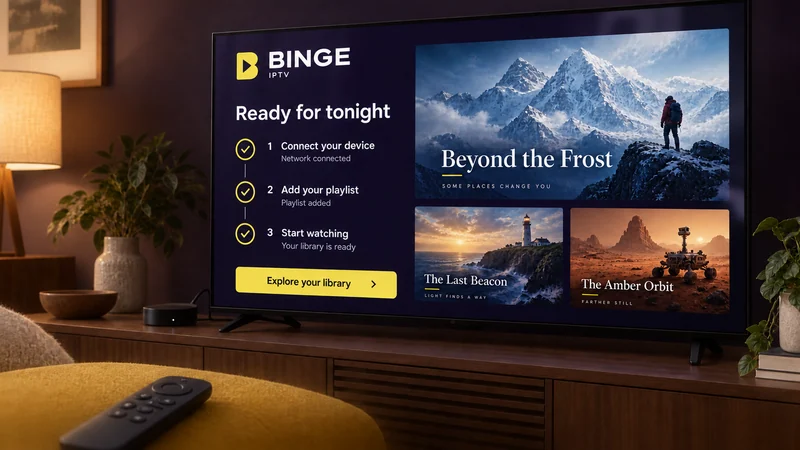
A television showing three completed setup steps, with a remote control resting nearby.

Device guides

Step-by-step for your device

Each guide covers where the app store is, what the player asks for, and the settings that catch people out on that particular device.

Smart TVs

Samsung, LG, Sony, Hisense, TCL and other connected sets.

Most modern smart TVs can install an IPTV player from their own app store. Once it is installed, you enter the playlist details we send you and the channel list loads on the TV itself — no extra box, no cables.

Amazon Fire TV & Firestick

Fire TV Stick, Fire TV Cube and Fire TV built into a television.

Fire TV devices are the route most of our customers take, because a stick turns almost any TV with an HDMI port into a streaming device. Players are installed from the Amazon Appstore, or sideloaded using Amazon’s own Downloader app.

Android TV & Google TV

Android TV boxes, Google TV sets and Android-powered projectors.

Android TV gives you the widest choice of player apps, and most of them support an electronic program guide and resume-where-you-stopped playback. Install from Google Play and sign in with the details we send.

Apple TV

Apple TV HD and Apple TV 4K running tvOS.

Apple TV supports IPTV players published on the tvOS App Store. Sideloading is not possible on tvOS, so you install one of the players Apple has approved and enter your playlist details there.

When it does not work

Troubleshooting, in the order worth trying

The channel list will not load at all

Nine times out of ten this is a typing error. Delete the profile and re-enter the details, ideally by copying and pasting from the message rather than reading them across. If it still fails, try the same details in a player on your phone: if the phone works, the problem is the TV device, not your subscription.

The list loads but nothing plays

Try several channels in different categories. If everything fails, restart the device and then your router. If only some fail, those particular sources are the issue and we can look at them — tell us which ones.

It plays, but it keeps stopping to buffer

Move the device closer to the router, or connect it by cable if you can. Check whether anything else in the house is using the connection heavily. Then, in the player’s settings, increase the buffer size — most players have this, and a larger buffer trades a slightly longer start for steadier playback.

The program guide is empty or wrong

Guide data loads separately from the channel list and can take a while the first time. Leave the player open for ten minutes, then restart it. If it is still empty, check the player’s time zone setting — a wrong time zone shifts the whole guide.

It worked yesterday and does not today

Check first that your subscription has not simply reached the end of its term, because nothing renews automatically here. After that, restart the app, the device and the router in that order. If none of it helps, message us — do not reinstall everything first, because that usually just costs you the setup you had.

Still stuck? Send us three things: the device, the player app you installed, and a photo of the screen. That is usually enough for us to know what is happening without a long exchange.

Ready to explore BINGE IPTV?

Browse the subscription options, or message the team and tell us what you want to watch on. We will help you pick a plan and get the device set up.

Chat on WhatsApp (opens WhatsApp in a new tab)